Install BrainSpark for Aircall
The native BrainSpark integration for Aircall automatically receives eligible completed Aircall conversations and processes them using your organization’s configured BrainSpark workflows.
Before you begin
Section titled “Before you begin”Before connecting Aircall, make sure you have:
- Access to your BrainSpark organization.
- Permission to manage integrations in BrainSpark.
- An Aircall account with permission to authorize integrations.
- At least one BrainSpark workflow configured for incoming conversations.
Your BrainSpark administrator can help confirm your access and workflow configuration if needed.
Open the Integration Center
Section titled “Open the Integration Center”In BrainSpark, navigate to Organization → Integrations.
The Integration Center is where you configure transcript sources, delivery destinations, workflow routing, and integration activity.
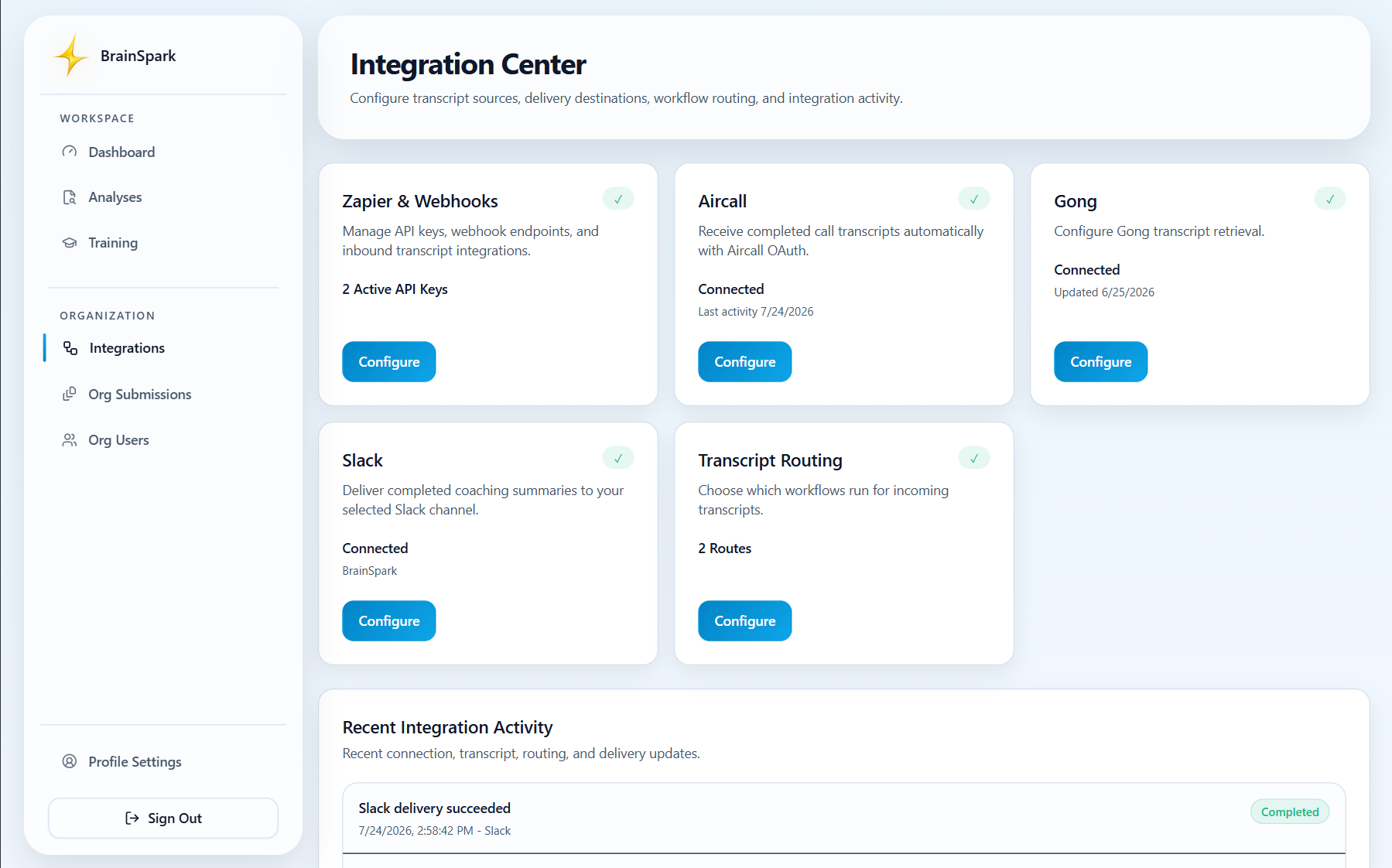
Open the Integration Center to manage Aircall, Slack, transcript routing, and other supported integrations.
Connect Aircall
Section titled “Connect Aircall”- Sign in to BrainSpark.
- Open the Integration Center.
- Select Aircall.
- Choose Connect Aircall.
- Complete the authorization process in Aircall.
- Return to BrainSpark after authorization finishes.
Verify the connection
Section titled “Verify the connection”After authorization is complete, BrainSpark should display the Aircall integration as Connected and Healthy.
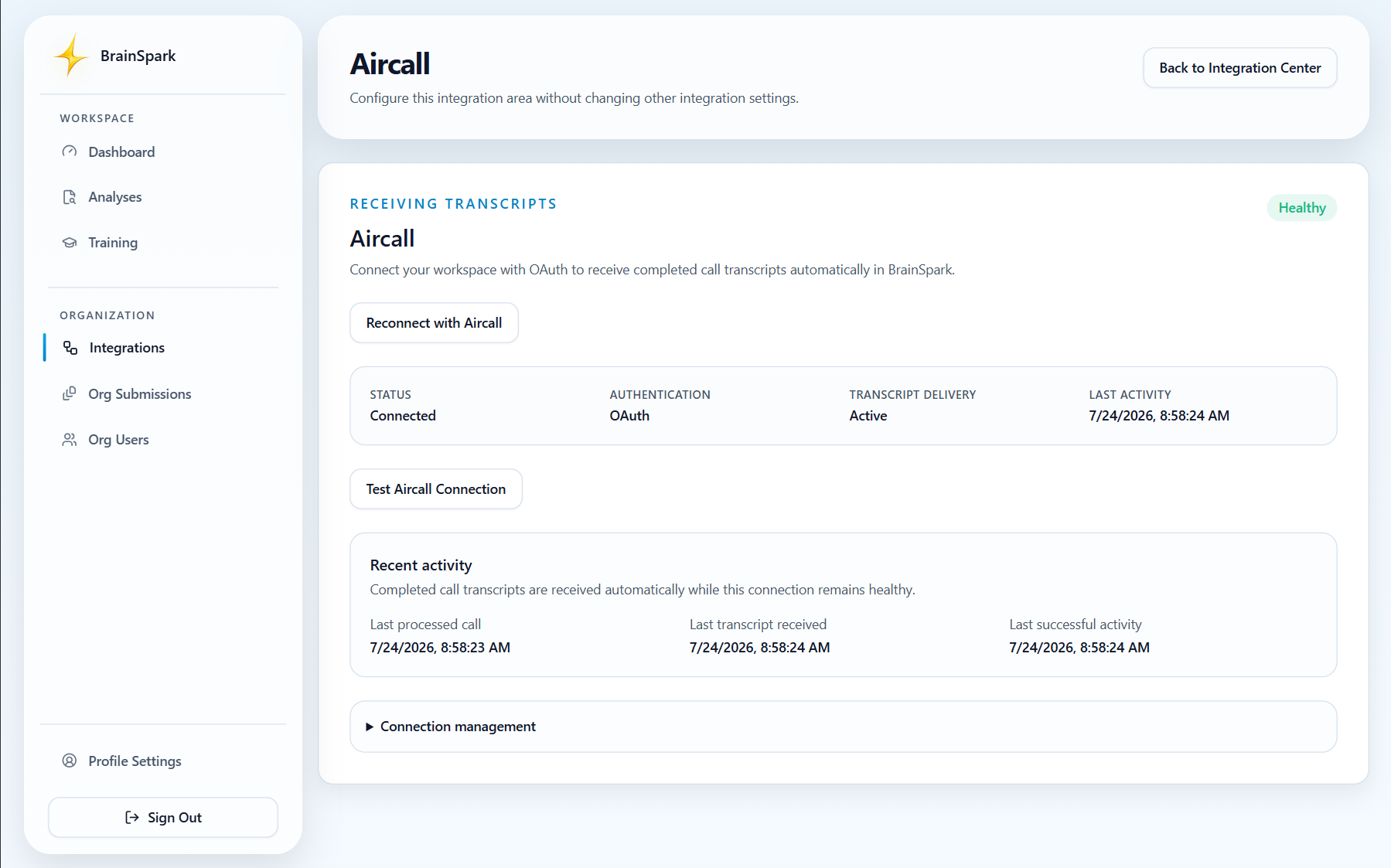
A successful connection displays:
- Connected status
- Healthy connection status
- OAuth authentication
- Active transcript delivery
Review transcript routing
Section titled “Review transcript routing”Transcript routing determines which BrainSpark workflow automatically processes eligible Aircall conversations.
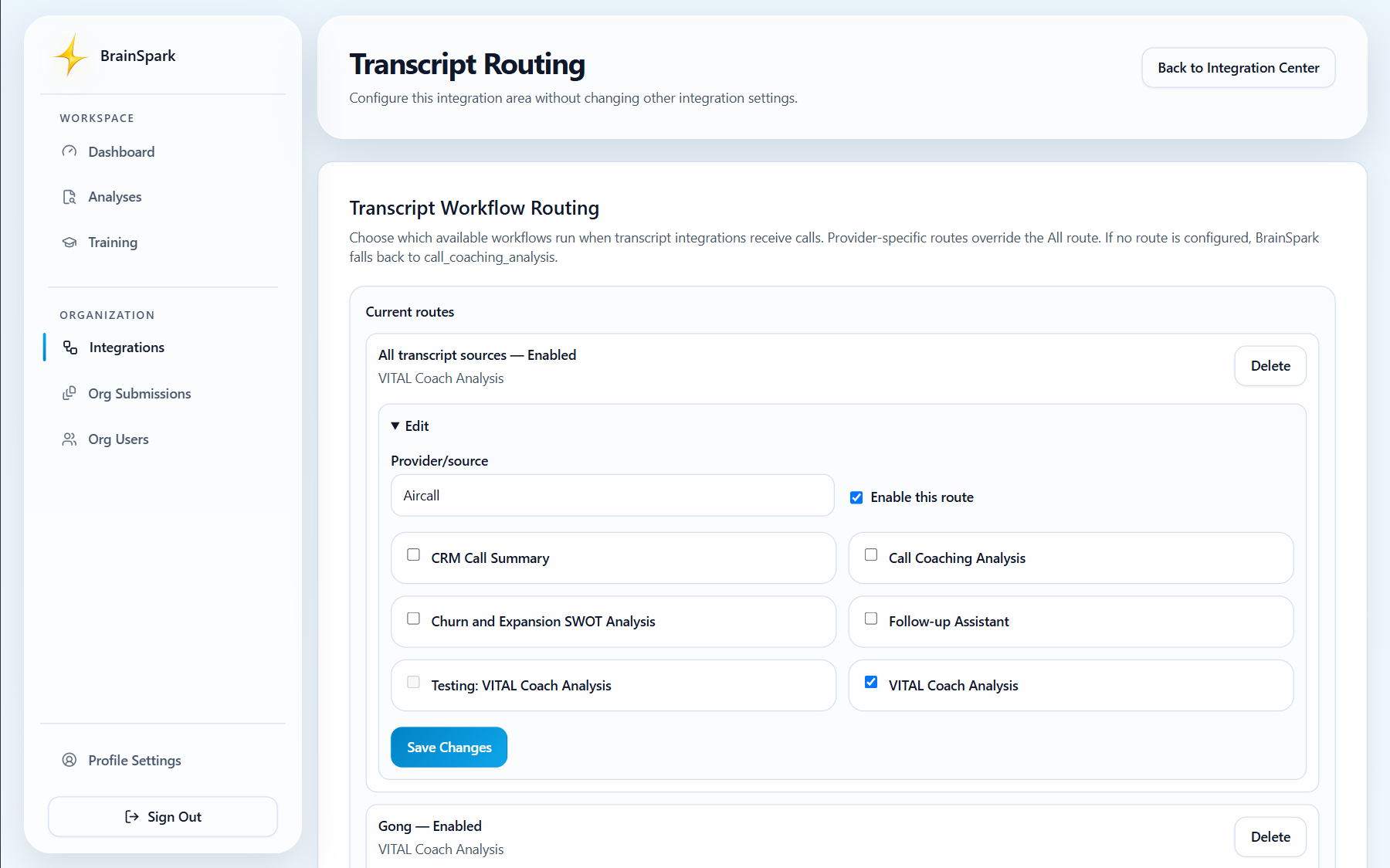
Review your routing configuration and confirm that the appropriate workflow is selected for incoming Aircall conversations.
If no provider-specific route is configured, BrainSpark uses your organization’s default routing configuration.
Test the integration
Section titled “Test the integration”To confirm everything is working correctly:
- Complete a test Aircall conversation that meets your organization’s routing requirements.
- Allow time for the transcript to become available.
- Verify that BrainSpark processes the conversation successfully.
- If Slack delivery is configured, confirm that the expected notification appears in your selected Slack channel.
Optional: Connect Slack
Section titled “Optional: Connect Slack”BrainSpark can also deliver supported coaching summaries and workflow results directly to Slack.
Slack is optional. All supported outputs remain available within BrainSpark even if Slack is not connected.
Next step
Section titled “Next step”Continue to Use BrainSpark with Aircall to learn what happens after BrainSpark processes an eligible Aircall conversation.
Need help?
Section titled “Need help?”For installation or integration assistance, contact help@brainsparklms.com.