Connect BrainSpark to Slack
BrainSpark can deliver supported workflow results directly to Slack, making it easy for your team to receive coaching summaries, analysis notifications, and other workflow outputs without leaving Slack.
Connect Slack
Section titled “Connect Slack”- Sign in to BrainSpark.
- Open Organization → Integrations.
- Select Slack.
- Choose Connect Slack.
- Authorize the BrainSpark Slack app.
- Select the Slack workspace and channel where notifications should be delivered.
- Save your configuration.
Verify the connection
Section titled “Verify the connection”After authorization is complete, BrainSpark displays the connected Slack workspace and destination channel.
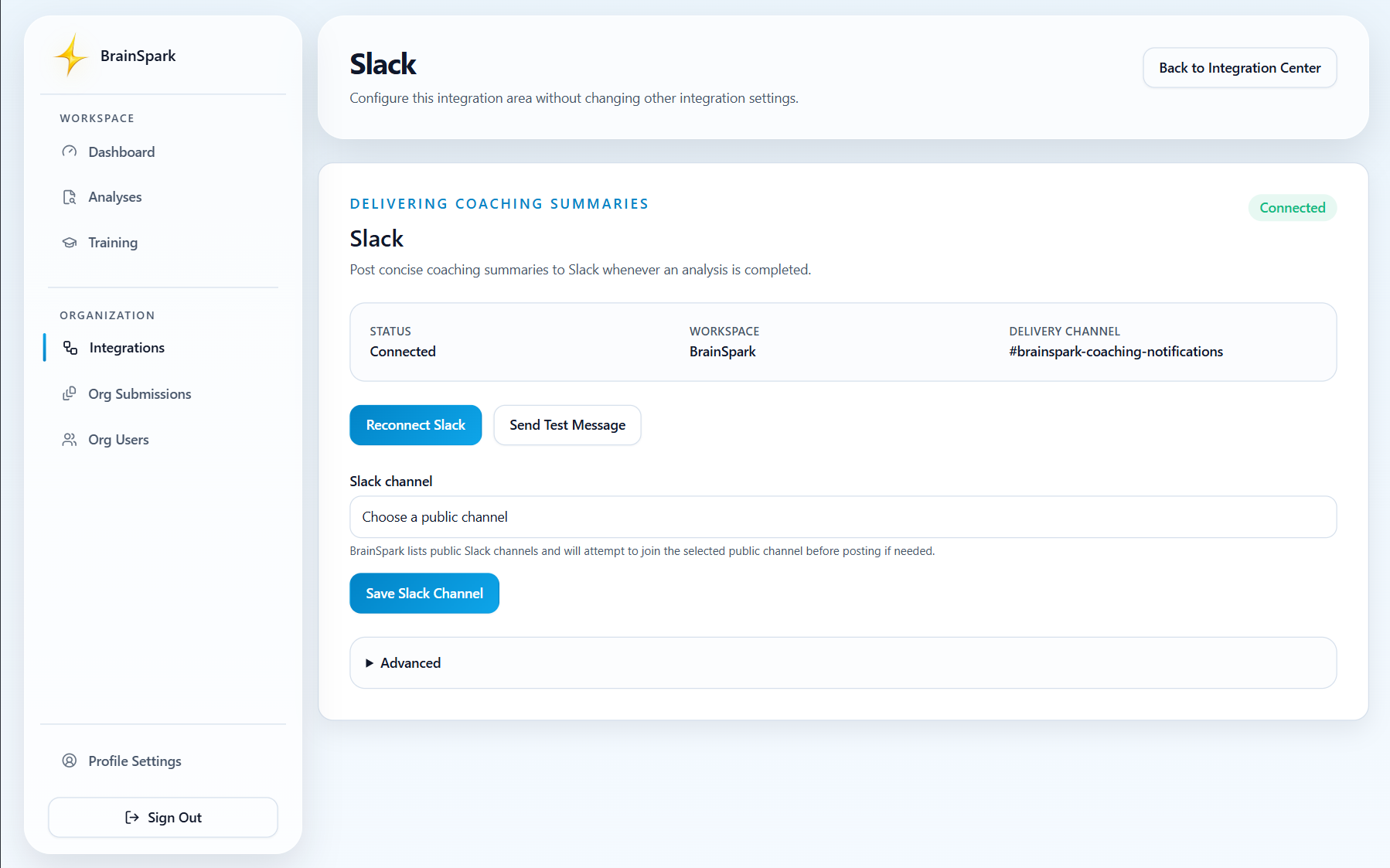
To verify the integration:
- Confirm the Slack connection shows as Connected.
- Verify the correct workspace and channel are selected.
- Send a test notification, if available.
- Run a supported BrainSpark workflow and confirm that a notification appears in Slack.
What Slack receives
Section titled “What Slack receives”Depending on your organization’s configured workflows, Slack notifications may include:
- Coaching summaries
- Call analysis notifications
- Workflow results
- Links back to BrainSpark for additional details
Slack provides quick visibility into completed work, while BrainSpark remains the primary location for reviewing the complete analysis and conversation context.
Related articles
Section titled “Related articles”Need help?
Section titled “Need help?”For assistance connecting Slack or troubleshooting notification delivery, contact help@brainsparklms.com.